patchio Kiosk
The family wall display
An old tablet, a retired monitor – and the family day hangs on the wall: events, tasks, meal plan, shopping list, your photos. Big enough to read as you walk past. No sign-in on the device.
No card needed · cancel monthly · then €4.99/month per household (VAT included)
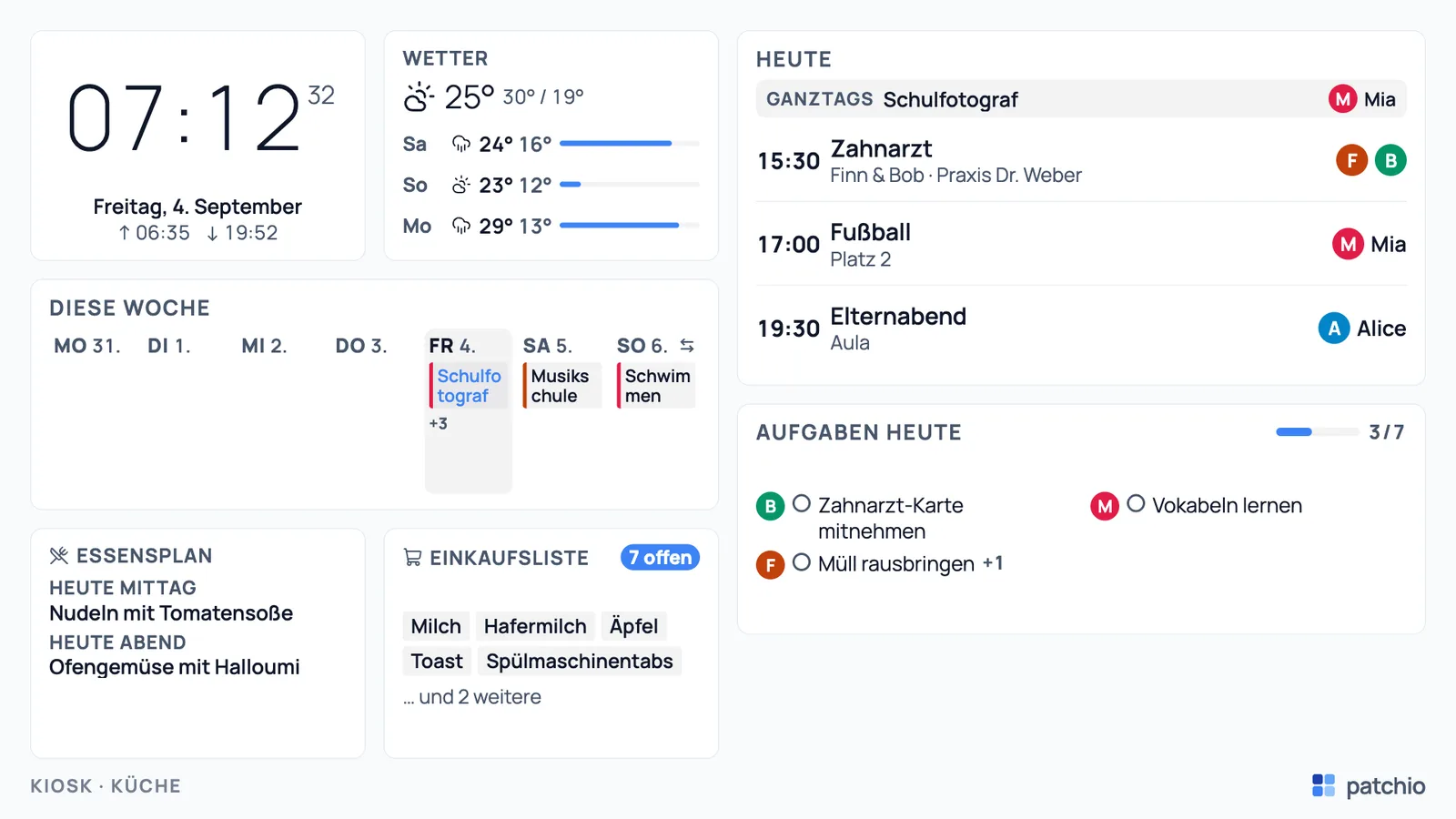
Real screen, example family – three looks, four clocks, portrait or landscape.
The note on the fridge – just always up to date.
The wall display pulls its data from your patchio household. You keep it up to date where you already do – it shows it to everyone who walks past.
Everyone sees the same thing
Events, tasks, the meal plan and the shopping list hang on the wall – even for those without a phone yet, or without one to hand right now.
Nothing entered twice
The screen shows your patchio data. Change it in the app, and it appears within a minute – no copying out, no second calendar.
No sign-in on the device
The screen gets its own key instead of your account. An admin issues it – and can withdraw it at any time.
Keeps running by itself
It fetches fresh data every minute, reloads itself overnight and resets its clock. If the connection drops, the picture just stays put.
What it looks like
One screen, many rooms.
Four templates for the kitchen, hallway, living room and kids' room, three looks, four clocks – and a free-form grid if you'd rather build your own. Every image is a real screenshot of the display, with an example family.
16 tiles
You choose what goes up.
Up to 24 tiles per layout, each its own size. Tiles that need a module stay empty while that module is off.
- ClockThe time, big enough to read from the kitchen table – analogue, digital, flip clock or word clock.
- WeatherNow and the next few days, so you know whether the raincoat needs to come along.
- TodayThe day's events in order, with the avatar and first name of whoever it concerns.
- WeekSeven columns for the coming week – who needs to be where, and when.
- TasksToday's tasks, grouped by person if you like, with progress shown.
- Meal planWhat's for lunch and dinner – the question answers itself.
- Shopping listThe open items, visible to anyone who passes the fridge.
- SchoolThe next lesson, the next test and the countdown to the holidays.
- Parenting scheduleA strip covering the next few days: who's with whom, and when.
- Who's whereWho's at which home today – without having to ask.
- CountdownA countdown to up to four events of your own: holidays, a birthday, moving house.
- BirthdaysWho's up next for a birthday, from the directory too if you like.
- PointsThe children's points balance, and the next reward within reach.
- Morning routineThe steps to get out the door – tickable right on the screen if you like.
- PhotosPhotos from your kiosk album, advancing at whatever pace you set.
- NoteOne fixed message for everyone – the note on the fridge, minus the magnet.
Set up in 5 minutes
Four steps, no tools required.
Turn on the screen
An admin turns on the “Kiosk” module in patchio. On the tablet or monitor, open app.patchio.de/kiosk in the browser.
Read the code
The screen shows a six-digit code, valid for ten minutes. It's generated only there – patchio never sends it by email or push.
Enter the code in patchio
Manage → Kiosk → Devices: type in the code, name the device (“Kitchen”), choose a layout. The screen picks it up within seconds.
Arrange the tiles
The assistant builds a layout from a template; in the grid you drag tiles into place. Whatever you save is live within a minute.
Before confirming, check which device is waiting for the code – patchio shows you the device type and format. Only pair codes you've read yourself on your own screen.
Several screens? Set up several layouts – “Kitchen”, “Hallway”, “Kids' room” – and assign one to each device. Two screens can also share the same one.
Which hardware?
The screen is often already in the house.
patchio needs no device of its own and no extra box – just a screen with a current browser that stays full screen. Two roads lead there, and a third only appears to.
- A tablet on the wallA retired tablet, a mount, a cable to the socket. Most of the time it's all already in the house, and it's up on the wall in fifteen minutes.Good for the kitchen and hallwayTo the hardware guide
- An old monitor with a mini PCA monitor that would otherwise sit in the cellar, plus a small PC that starts the browser in full screen. Runs for weeks on end without anyone standing by.Good for the living room and officeTo the hardware guide
- A smart display? Probably notEcho Show and Nest Hub seem like the obvious choice, but they won't keep the kiosk open: the browser closes after a few minutes, or is missing altogether. Why a cheap tablet is the better choice is in the guide.A cheap tablet, ratherTo the hardware guide
Specific devices, mounts and the settings so nothing falls asleep: Wall display – which hardware fits?
Privacy
A screen in the hallway shows whatever is on it.
That's exactly why what the kiosk never shows is built in for good – the rest is up to you.
The screen holds no access to your account, only its own device key. An admin issues it, and can withdraw it at any time – the device then sees only the pairing screen from its next check-in. A device that hasn't checked in for 90 days is disconnected automatically. The data comes from patchio itself: no third-party services, no ads, no tracking. Photos for the kiosk sit in a private storage area with no public address.
Never appears on the screen
- Finances, budgets and contracts
- Health, medication and cycle tracking
- Documents, vehicles and loyalty cards
- School grades
- Notes on events, phone numbers and addresses
Private events show up as “busy” at most, and events for selected people not at all. When visitors are over, guest mode also hides tasks, points, school, “who's where” and event titles – already on the server, not just on the device.
What families ask about the wall display.
- A device with a current browser that stays full screen: a retired tablet, or an old monitor with a mini PC. patchio runs there as an ordinary web page – you install nothing. We'd steer clear of smart displays like Echo Show or Nest Hub, and of the built-in browsers on many TVs: they won't keep the kiosk open, or forget the key when switched off. Which devices have proven themselves is in the hardware guide further down.
- No – and that's deliberate. A device hanging openly in the kitchen shouldn't carry a password or a family session. Instead it gets its own device key, which only an admin can issue. Nobody can reach your account from the screen itself.
- No. The kiosk is part of the patchio subscription – €4.99/month or €39/year per household, however many screens you put up. Before that, try it free for 30 days, no card needed.
- Manage → Kiosk → Devices → Disconnect. Access becomes invalid straight away; at its next check-in, at most a minute later, the device sees only the pairing screen. A disconnected device cannot reconnect itself. And automatically: a device that hasn't checked in for 90 days is disconnected on its own.
- Only if you want it to. Guest mode (“visitors here”) hides tasks, points, school, “who's where”, the parenting schedule, birthdays and event titles – leaving the clock, weather, meal plan and photos. Filtering happens on the server: this data never even reaches the device. A smaller step works too: “shorten titles” shows just the category “School” instead of “Parent–teacher meeting”.
- Finances, budgets and contracts, health, medication and cycle tracking, documents, vehicles, loyalty cards, school grades, notes on events, as well as phone numbers and addresses. This is not a setting, it is built in for good. Private events show up as “busy” at most, and events for selected people not at all – the kiosk is not a chosen viewer.
- You decide. In the default “view only” setting, the screen ignores every touch. Turn on “tick off tasks” and a task row becomes tappable; it asks who did it – with avatar and first name – and points are credited as normal. Tasks that need confirmation stay locked – those need the app.
- Both, and you don't have to choose. One layout holds both versions at once: if the screen is wider than it is tall, it shows landscape, otherwise portrait – and it switches when you rotate it. Landscape suits monitors, portrait a tablet by the door.
Hang your family day on the wall.
The kiosk is part of patchio – alongside the calendar, tasks, meal plan, finances and the rest. Try it free for 30 days, then decide.
No card needed · cancel monthly · then €4.99/month per household (VAT included)